(click on flag to translate on your language)
Band is not connecting, pairing and sync solutions

New connection and repair guide
Important: Newer Mi Band/Amazfit devices allow only one app to stay connected. The official app can auto‑reconnect in the background and block Notify, even if you don’t open it.
Quick checklist
- Remove old unused band entries from Bluetooth paired devices.
- No other third‑party app connected to the band.
- Watch battery above 30%.
- Official app account email/password ready (for online key method).
- Bluetooth and Location enabled on phone.
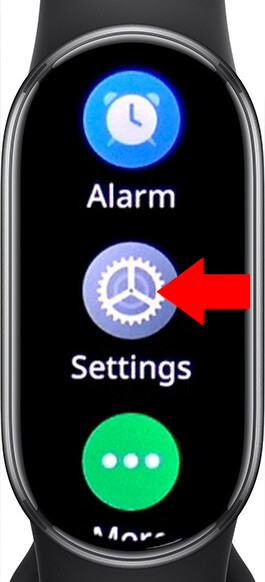
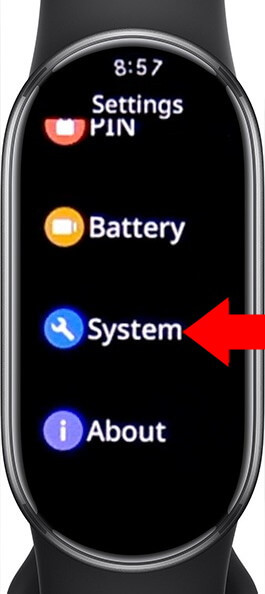
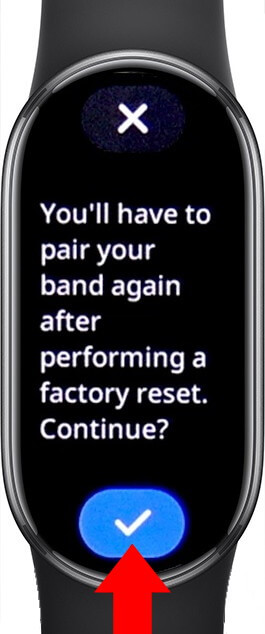
Step 0 — Optional but recommended: hard reset
- On the watch: Settings > System > Reset.
- After reset, complete the minimal setup if asked.
Step 1 — Connect with the official app
- Open official app Zepp / Mi Fitness / Huawei Connect (based on your device).
- Keep phone near the watch; ensure Bluetooth + Location are ON.
-
If it won’t connect:
- Use “Pair / Repair / Replace device” and confirm on the watch.
- Still stuck? Close the app, toggle Bluetooth OFF/ON, retry.
- Reboot the phone, retry from the official app.
- If needed, repeat Step 0 (reset), then pair again.
- Verify the watch shows “Connected” and syncs time/steps.
Step 2 — Disable the official app so it can’t auto‑connect
You must prevent the official app from taking the connection.
IMPORTANT: Never unpair watch from the official
- EITHER uninstall the official app
- OR Pause/disable watch in the official app
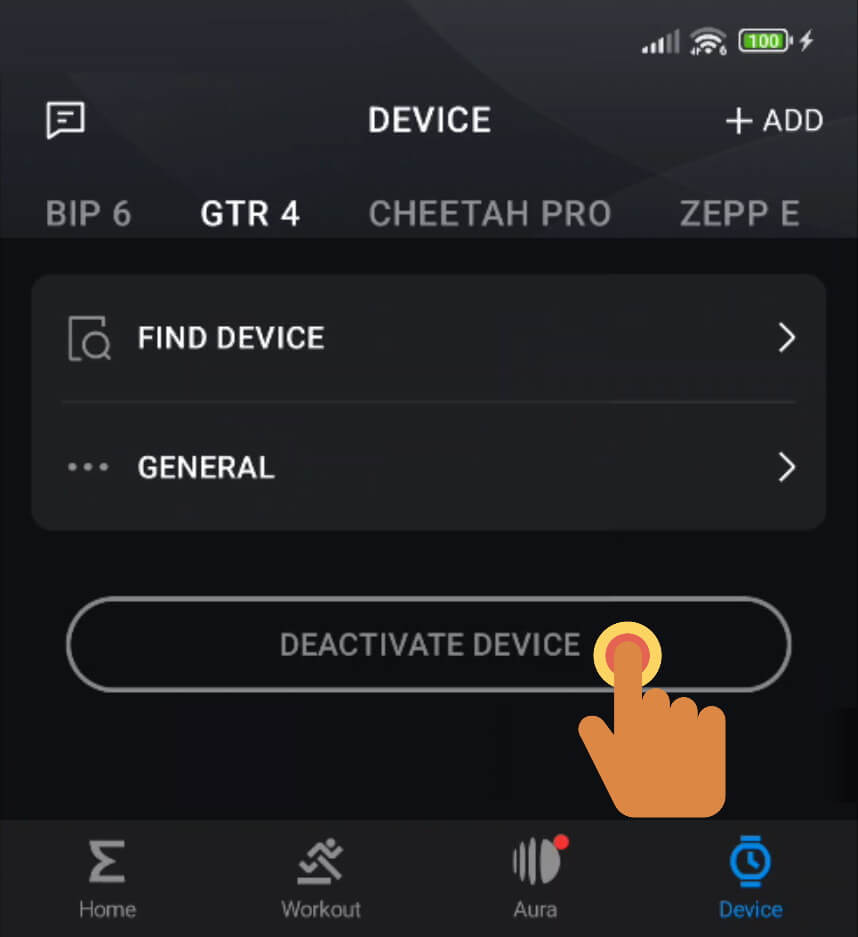
- OR Remove official app permissions
On phone: Settings > Apps > [Official app]- Deny all permissions (Bluetooth/Nearby Devices, Location, Physical Activity).
- Disable background activity/battery usage.
- Force stop the app.

Step 3 — Install and open Notify
- Open Notify and grant requested permissions.
- Keep Bluetooth and Location ON while pairing.
Step 4 — Get the pairing key (Bluetooth secret)
This key lets Notify connect directly without the official app running.
-
Online method (recommended):
- In Notify, choose online/automatic key retrieval.
- Log in with your official app account (email + password).
- If the key/pairing seems wrong, create a new official app account, bind the watch there, then repeat key retrieval to ensure it matches the bound account.
- Continue until Notify confirms the key is obtained.
-
Offline method:
- Follow the in‑app steps to extract the key locally.
- Complete prompts until the key is saved in Notify.
Tips & common pitfalls
- Don’t run both apps. The official app will grab the connection and block Notify.
- Auto‑reconnect can happen later (after reboots/Bluetooth toggles). If issues return, uninstall or fully pause the official app again, revoke permissions, and force stop.
-
Still failing?
- Reboot the phone.
- Toggle Bluetooth OFF/ON.
- Forget/remove the watch from Bluetooth settings, then retry in Notify.
- As a last resort, repeat Step 0, then Steps 1–4.
Legacy guide (Mi Band 1–6, Amazfit before 2021)
Use this only for older models that support concurrent/assisted connections with the official app.
Prerequisites
- Remove old band entries from Bluetooth paired devices.
- No other third‑party app connected to the band.
- Official app either installed and paired, or not installed (based on method).
- Use only one phone/tablet to connect.
- Genuine Mi Band/Amazfit device and connectable.
- Disable aggressive battery optimizers that may kill Notify (see dontkillmyapp.com).
Method without the official app
Some models (Mi Band 4, Amazfit Bip Lite, GTR/GTS series, Verge Lite, GTR 2/GTS 2) require an Auth/Pairing key.
- Reboot the phone; keep GPS/Location enabled.
- Open Notify > side menu > press “+” near Profiles > complete initial pairing.
- If required, obtain/set the Auth key in Notify.
- (Optional) After Notify pairing is stable, add the band in phone Bluetooth settings.
Other suggestions
- Prefer only one app connected for stability.
- Settings > Apps > Show system > Bluetooth > Clear cache/data if Bluetooth misbehaves.
- Remove stale paired devices, reinstall Notify and/or the official app if needed.
- Factory reset the band (if supported) if it’s stuck.
- Disable battery optimizations for Notify; enable “Prevent app get killed” in Notify.
- Use recent firmware to avoid known issues.
- Try pairing from phone Bluetooth settings if app pairing fails.
- Enable “Secure Mode” in Notify (if available).
Method with the official app
- Ensure the official app is working and updated.
- In Notify, verify it detects the official app, then side menu > “+” near Profiles > allow initial pairing again.
- Enable Notification Access for both apps if you want both to handle notifications (older devices only).
- Keep the official app running in background if your older model needs it for stability.
- If the official app fails, update the band firmware using the latest official app, then retry.
- Optionally enable the official app’s status bar connection indicator.

Mid‑2021+ firmware reminder
- Features like custom vibrations, alarms, reminders, quick replies, watchface/firmware uploads often require removing or pausing the official app so Notify can keep a direct connection.
Need help? Post your device model, where the process fails, and any on‑screen messages to get a targeted fix.